
1. Before you start
You'll need:
- A Windows 10 or 11 PC (a laptop you can take to the car is easiest).
- A supported car.
- A K-line (KKL) USB cable for the OBD socket under the dash. Our cable guide shows which one to buy.
- A healthy car battery, and the laptop's charger. Flashing takes a few minutes and must not lose power.
Installing. Download VQLab from the Download page and run the installer. The first time VQLab opens it shows its terms in a Before you start window: tick I have read these terms and accept them and click Accept and continue. You can read them again any time under Help > Disclaimer.
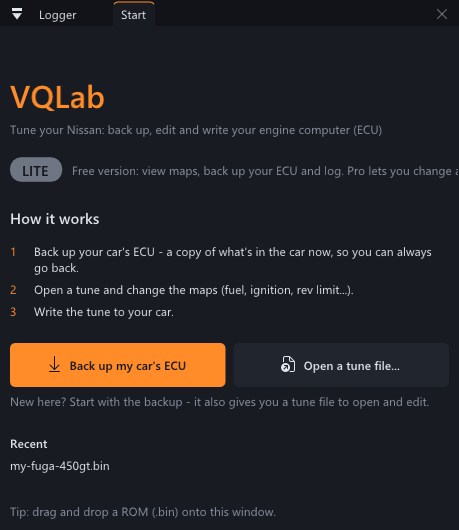
The start screen shows the three steps VQLab is built around: back up your car's ECU, open a tune and change the maps, then write the tune to your car. New here? Click Back up my car's ECU first. It also gives you a tune file to open and edit.
2. Lite, Pro and activating
VQLab starts as Lite, which is free: you can open ROMs, view every map, back up your ECU and log drives. The menu bar shows Read-only while you're on Lite.
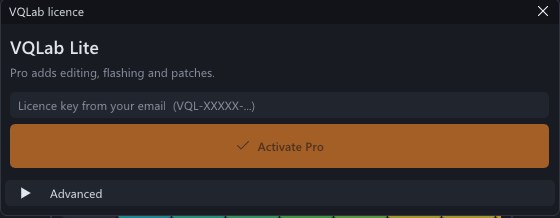
Pro adds editing, saving, patches, flashing and Claude edits. To activate it:
- Open Help > Licence / activate Pro... (or click Upgrade to Pro at the top right).
- Paste the licence key from your email. It looks like
VQL-XXXXX-XXXXX-XXXXX-XXXXX. - Click Activate. This needs an internet connection once.
- One licence works on up to 5 PCs and includes 5 cars, with more cars available in packs of 5.
- After activating, VQLab works offline in the garage. It checks in with the licence server now and then, and must check in at least every 30 days to stay unlocked.
- Moving to a new PC? Open Help > Licence on the old one and click Deactivate this PC (click it twice to confirm). That frees its slot. You can also remove PCs from your account.
3. The VQLab window
The window is made of panels you can drag, dock and resize. Turn each one on or off from the View menu:
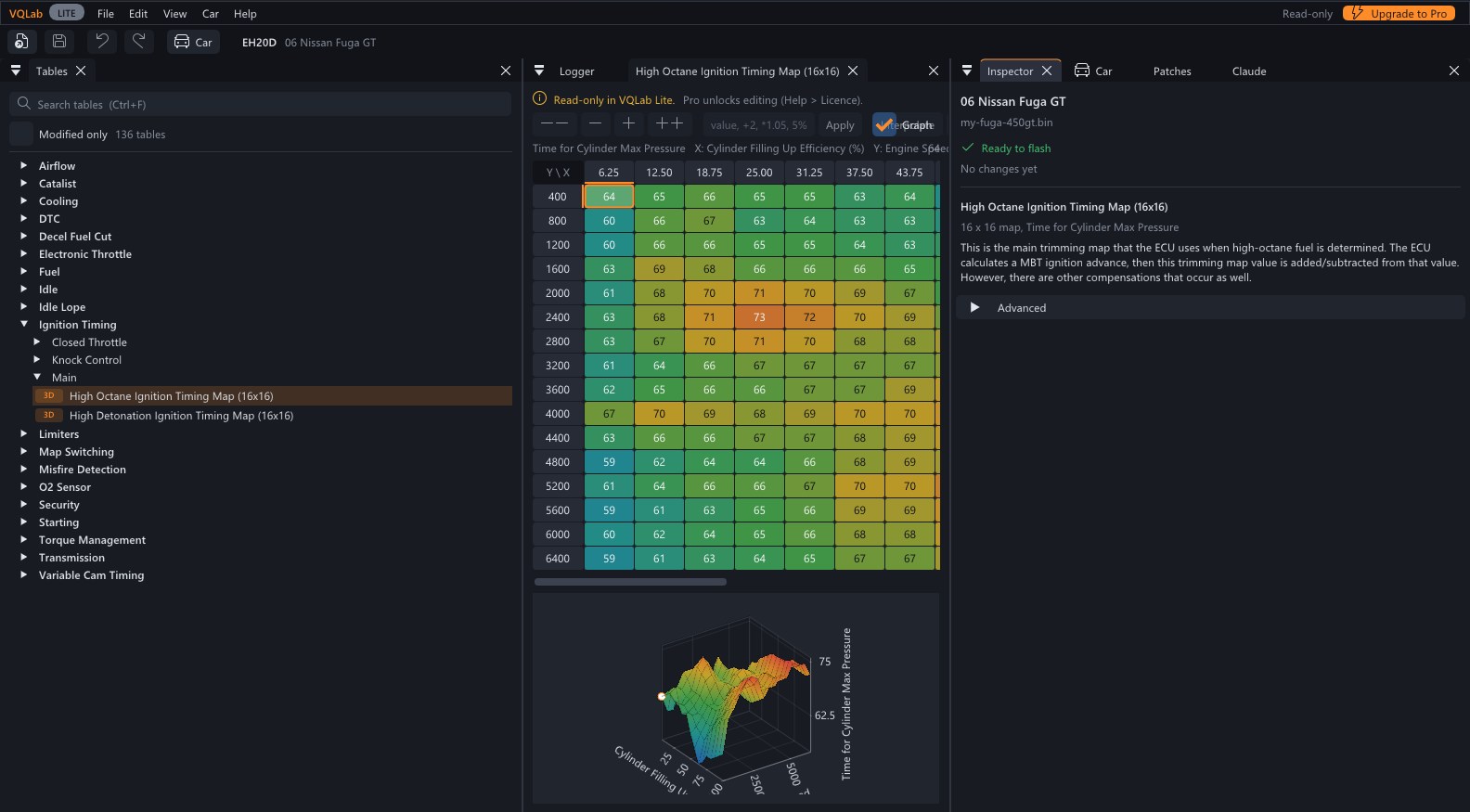
- Tables: every map in the open tune, grouped by category. Type in Search tables (Ctrl+F) to find one, or tick Modified only to see just what you've changed.
- Inspector: which car the tune is for, whether it's ready to flash, and a plain-English description of the selected map.
- ECU / Flash (the Car button): back up, compare and flash.
- Patches: custom patches available for your ECU.
- Logger: live data and recorded drives.
- Claude: connect Claude to read and edit the open tune.
Also under View: Heatmap colours, Show raw values (the numbers exactly as stored in the ECU), UI scale for high-resolution screens, and Reset layout if you've lost a panel.
4. Back up your ECU
- Plug the cable into the OBD socket under the dash and into the PC.
- Turn the ignition ON, with the engine OFF.
- Click Car on the toolbar (or Car > Back up / write to car...), then Back up ECU.
- Wait for Backup saved. You can turn the ignition off.
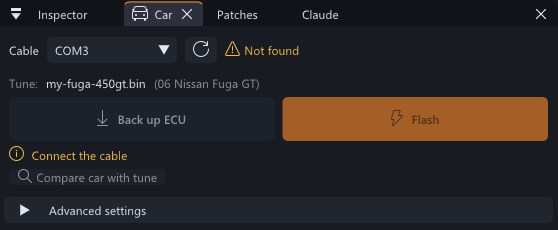
The backup is saved to Documents\VQLab\Backups. Click Show in folder to find it. Backing up only reads the ECU: nothing in the car is changed. Copy the file somewhere safe, like a USB stick or cloud storage.
5. Open a tune
Use File > Open ROM... (Ctrl+O), Open a tune file... on the start screen, a file from Recent, or drag a .bin file onto the window. Your backup is a tune file too: open it, make your changes and save it under a new name.
VQLab reads the ECU's software ID from the file and loads the matching maps automatically. If more than one set of maps fits, it asks you to Choose definition. You can change your choice later from File > Switch definition...
ECU not supported yet? VQLab tells you, and offers to Send ROM to VQLab so we can add your car. Only the ROM file is sent, with its ECU ID and anything you type in. A ROM holds the ECU's software and maps, not personal data. Add your email if you'd like us to tell you when it's supported. You can also request a vehicle on the website. Help > Supported cars... lists every ECU VQLab knows, searchable by car, year or ECU ID.
6. Is it ready to flash?
The Inspector shows one status line for the open tune:
- Ready to flash: checksums and the code signature are valid.
- Checksum needs fixing: click Fix now, or just save. VQLab fixes checksums on save.
- Code signature invalid - would cause limp mode: don't flash this file. Open your backup instead, or contact support.
- Beta support - not yet run on a car: the maps are decoded but haven't been flashed on a real car yet. Check your changes carefully.
It also counts how many maps you've changed. Open Advanced for the technical details (size, CPU, definition, market).
7. Editing maps
Click a map in Tables to open it. 3D maps are shown as a grid with the axes along the top and side; tick Graph to see it as a 3D surface or 2D curve. Hover any cell to see its value, the original value and the raw number. Editing needs Pro. On Lite you can look at everything.
12.5 sets, +2 adds, *1.05 multiplies, /2 divides, 5% or -5% changes by a percentage.Switches (on/off settings) are shown as tick boxes. Some maps can be shown in more than one unit: pick one from the list at the top right of the map. The full shortcut list is under Help > Keyboard shortcuts / About.
8. Saving and checksums
Save with File > Save (Ctrl+S) or Save as... (Ctrl+Shift+S). The ECU checks the file's checksums before it will run it, so VQLab recalculates them every time you save (Edit > Fix checksum on save, on by default). Edit > Fix checksum now does it straight away.
Tip: keep your original backup untouched and save each tune under a new name, like my-fuga-sport.bin.
9. Custom patches
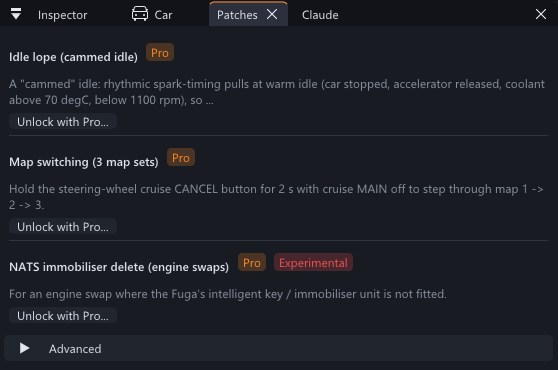
Patches add features the factory ECU never had. Open a tune, then the Patches panel lists the patches for that ECU. Each shows On or Off. Hover the description to read exactly what it does. Patches marked Experimental haven't been run on a car yet: keep your backup handy.
- Click Add to tune. Read the summary (open What it changes for the details), tick I understand and click Add patch.
- Your maps aren't changed, and Ctrl+Z undoes it.
- Save, then flash.
To take a patch out, click Remove. Your maps are kept, but anything only the patch stores (like map sets 2 and 3) is erased.
- Map switching stores three full sets of maps. Map 1 is your normal tune; maps 2 and 3 start as copies and appear under Map Switching in Tables. The patch's description in VQLab tells you how to switch maps on your car. The check-engine lamp blinks the map number after a switch.
- Idle lope gives a "cammed" idle. Set it per map under Idle Lope > Map 1 / 2 / 3.
- NATS immobiliser delete is for engine swaps where the original key and immobiliser unit aren't fitted. It removes the theft protection, so it's not for a car you drive on the road.
Which patches are available for which cars is listed on the Features page.
10. Flashing your car
Flashing writes the open tune to the car. It needs Pro and a tune that's Ready to flash.
- Connect the cable. Ignition ON, engine OFF. Plug the laptop into its charger.
- Open the tune and click Car, then Flash. If you haven't backed up this session, VQLab asks Back up first?. Say yes unless you already have a backup of this car.
- The first time, read the Flashing terms and accept them.
- Tick the safety checklist: Engine is OFF and the ignition is ON and Battery is healthy and the laptop is plugged in.
- Choose Which car is this?: a car already on your licence, or A new car (give it a name, like "My Fuga" or the rego). Newer ECUs recognise the car by themselves, so there's nothing to pick.
- Start the flash. It takes a few minutes. Don't turn the key or unplug anything until it's finished.
- When it says Done, turn the ignition off for 10 seconds, then start the car.
- Practice run only (writes nothing) goes through every step without writing. It's a good cable test.
- Compare car with tune checks whether the car already has the open tune, without writing anything.
- Car slots. A car uses one of your 5 slots the first time it's flashed. Reflashing a car that's already on your licence is free, and works offline. Adding a new car needs an internet connection.
- Advanced settings are for troubleshooting with support. Leave them on Auto: a wrong CPU setting can brick the ECU.
11. Logging a drive
The logger uses the same cable as flashing. Ignition on: the engine can run.
- Open the Logger panel and pick your cable. Under Advanced, the source should be Car - K-line OBD-II (Simulator shows fake data, to try it out), and you can pick the channels you want. Fewer channels update faster.
- Click Record a drive, drive, then Stop.
- Pick the drive on the left to graph it.
With a tune open, use Show on map to lay the drive over a map: each cell shows the drive's average for the value you choose (for example the measured air-fuel ratio over the fuel target map), and cells you never drove through are dimmed. Tick Warm engine only to ignore cold-start data. You can also import a CSV log with Import CSV... under Advanced.
12. Working with Claude
VQLab can connect to Claude (Claude Code or Claude Desktop) so you can ask questions like "Explain my timing map" or "Raise the rev limit to 7000".
- Open the Claude panel and expand Set up Claude.
- Claude Code: copy the one-line command shown and run it once. Claude Desktop: copy the config shown into Claude's config file (Open config folder takes you there), then restart Claude Desktop.
- Click Turn on in the panel, then ask Claude about your tune.
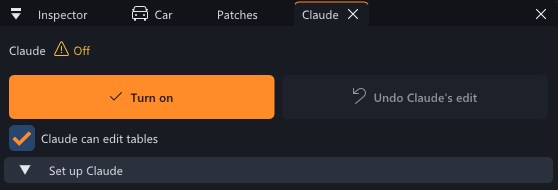
- Claude can edit tables off means Claude can only read maps and suggest changes. Turning it on lets it make edits, which needs Pro.
- Every edit Claude makes is an undo step, listed under Activity. Undo Claude's edit reverses the last one.
- Claude can never save files or touch the car. Saving and flashing are always your decision.
13. Troubleshooting
Still stuck? Open Details (for support) in the Car panel, copy the text, and send it to us with your ECU ID. Check the FAQ too.